4Search on your phone
On this page
4Search works in a phone's browser with no app to install. The page rearranges itself for a narrow screen: the controls shrink into a compact bar, wide rows slide sideways, and the topics list moves behind a button.
#The home page on a phone
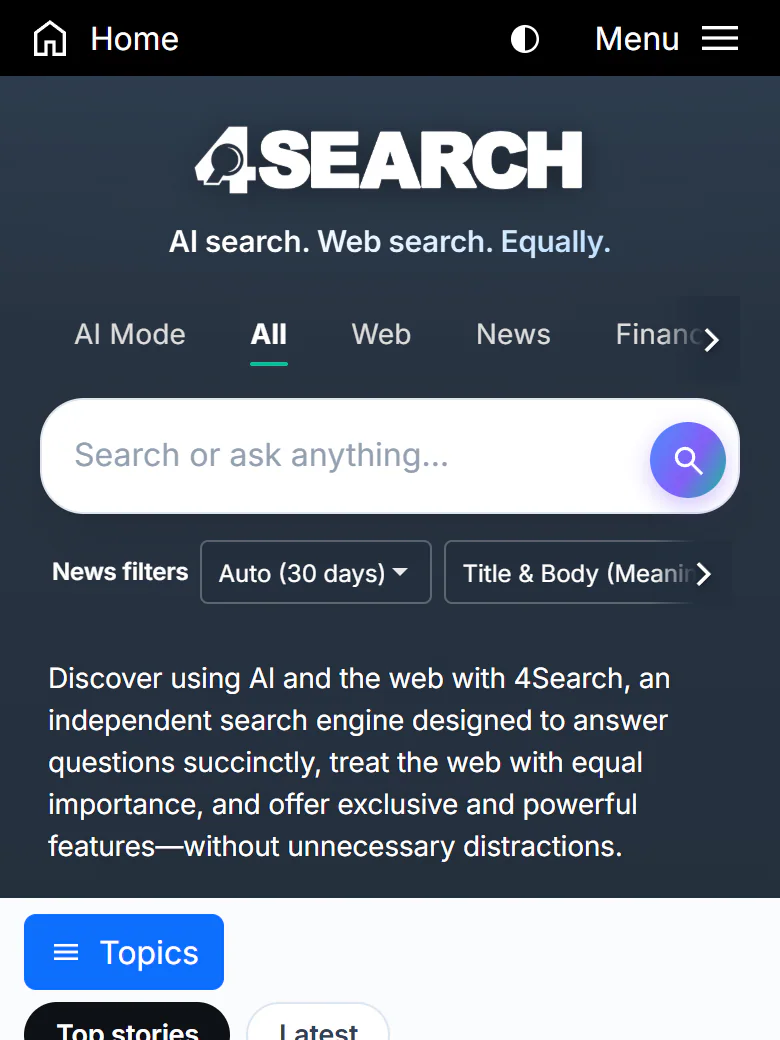
The home page on a phone.
- 1Home
- 2Colour theme (icon only)
- 3Menu
- 4Tabs slide sideways
- 5Search box
- 6Topics button
- Home is in the top bar, as on a computer.
- The colour theme button shows only its icon. Each press moves from Hybrid to Light to Dark.
- Menu opens the same list as on a computer.
- The tabs slide sideways. Swipe the row, or select the arrow at its right edge, to reach tabs that are off the screen.
- The search box is full width. Tap it to type; the keyboard's search key runs the search.
- The Topics button opens the topics list. It sits under the introduction on the home page.
Below these, the front page of stories flows in a single column.
#The topics list
On a phone the topics list is hidden until you ask for it. Tap Topics and it slides in from the left.
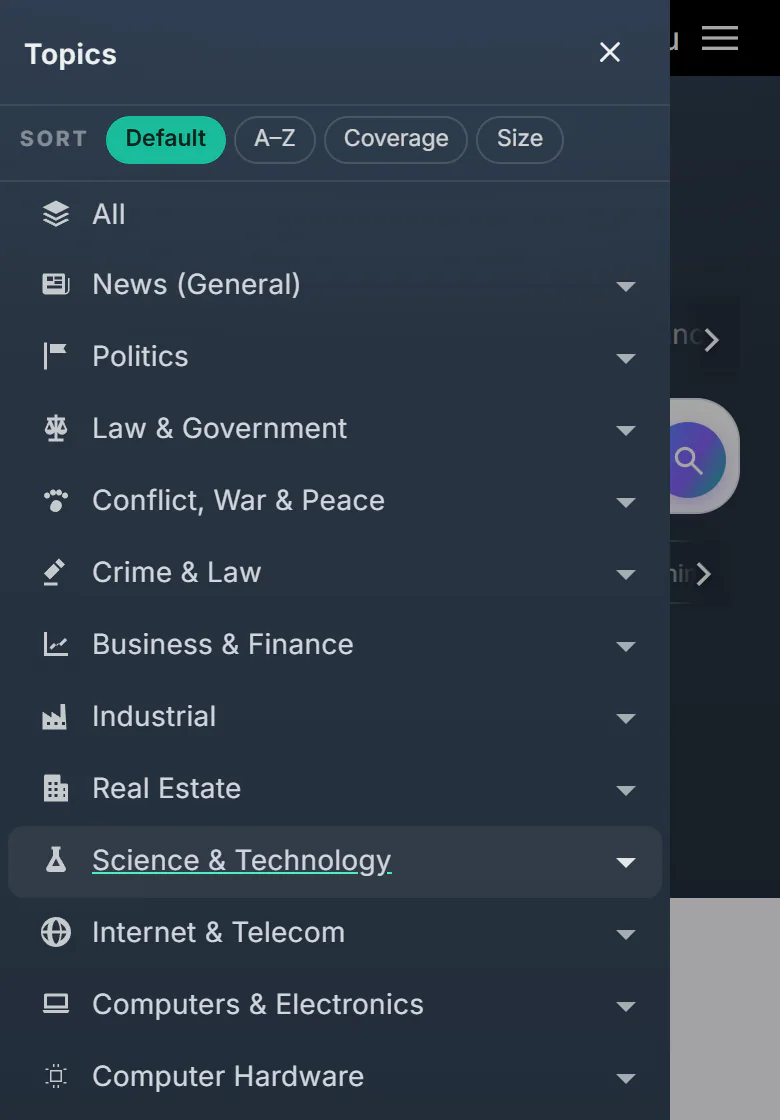
The Topics list opened on a phone.
- 1Close the list
- 2Sort the topics
- 3Arrow: open the subtopics
- The close button puts the list away. Tapping the dimmed page beside the list closes it too, and so does choosing a topic.
- Sort changes the order: Default, A–Z, Coverage or Size.
- The arrow beside a topic opens its subtopics. Tap the topic's name to open its page.
If you have typed words in the search box first, tapping a topic searches your words inside that topic. See Topics and your front page.
#Results on a phone
On a results page the top bar becomes more compact. The logo replaces Home, and Topics moves into the bar.
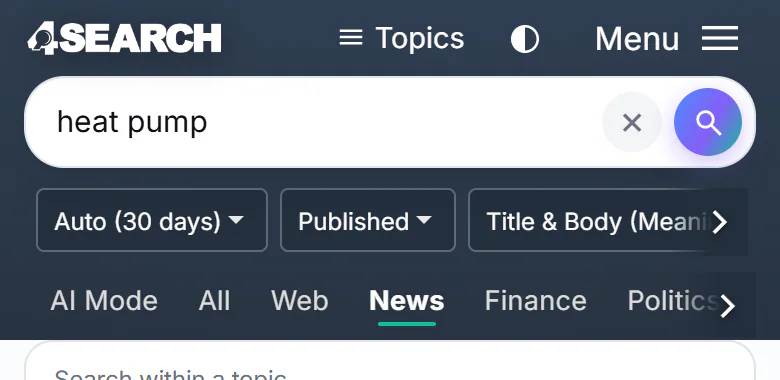
A results page on a phone.
- 1Logo: back to the home page
- 2Topics
- 3Search box
- 4Filters slide sideways
- 5Tabs slide sideways
- The logo goes back to the home page.
- Topics opens the topics list.
- The search box stays at the top with a × to clear it.
- The filter row slides sideways. On very small screens, narrower than 360 pixels, it folds behind a Filters button that opens it.
- The tabs slide sideways here too.
Most service pages, such as Finance, Politics, Predictions, Weather and Maps, use the same bar and fit a phone's width.
#The footer on a phone
The footer folds its groups to save space. Tap Search, Company, Legal, Policies or The 4 Network to open one. The privacy links, Privacy Policy, Your Privacy Choices and Terms of Use, are repeated below the groups, so they are never hidden.
#Add 4Search to your home screen
The Menu and the footer have two buttons for putting 4Search on your home screen.
- Android: select Install app (Android). If your browser offers its own install prompt, it appears; if not, open the browser menu (the three dots), choose Install app or Add to Home screen, and confirm.
- iPhone: select Add to Home Screen (iPhone), then follow the steps: tap the Share icon, choose Add to Home Screen, and tap Add.
The result is an icon on your home screen that opens 4Search without the browser's address bar. See Install the app.
#Common questions
Is there a 4Search app in the app store?
No. 4Search is a website. The install buttons add it to your home screen as a shortcut that opens like an app.
Where did the topics list go?
It is behind the Topics button. See The topics list.
The tab I want is off the screen. How do I reach it?
Swipe the row of tabs sideways, or tap the arrow at its right edge. The Menu also lists the tabs of the site.
Do I need to turn on anything for 4Search to work on my phone?
You need JavaScript on, which every phone browser has by default. See Browsers and devices.